

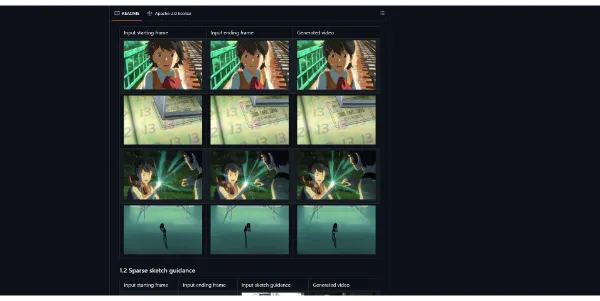
Creating fluid cartoon animations no longer requires drawing hundreds of intermediate frames by hand. ToonCrafter uses advanced generative AI to interpolate between keyframe images, generating smooth, natural transitions for digital artists and animators.
Quick Answer
ToonCrafter is an open-source AI animation tool designed for animators, illustrators, and video creators. It is ideal for users who want to automate the tweening process and create cartoon transitions from keyframe drawings. The primary use case is generating smooth cartoon video clips from two static images, with the main advantage of reducing manual frame-by-frame drawing times by up to 80%.
Table of Contents
Full Introduction to ToonCrafter
Historically, traditional 2D animation has been one of the most labor-intensive art forms, requiring dedicated artists to draw “in-between” frames (tweening) to link key poses. ToonCrafter addresses this bottleneck by applying deep learning models trained specifically on cartoon structures.
By analyzing the lines, colors, and motion vectors between two starting frames, ToonCrafter automatically constructs the intermediate frames needed for fluid movement. This makes it a highly valuable asset in the ecosystem of AI video editing tools, giving indie animators studio-grade capabilities on a budget.
How Does ToonCrafter Work?
ToonCrafter utilizes a specialized latent diffusion model designed for anime and cartoon physics. Users upload a starting image (Frame A) and an ending image (Frame B), then specify the number of intermediate frames they wish to generate.
The AI aligns the artistic style, line work, and shading of both images, computing the path of least resistance to morph the first image smoothly into the second. Because the model is trained on rich cartoon datasets, it understands how hair, fabric, and limbs naturally move, producing realistic cartoon motion instead of robotic fades.
Key Features
- AI Cartoon Tweening: Automatically generate smooth transitions between any two keyframes.
- Open-Source Codebase: Access the code, run it locally on your own GPU, and integrate it into custom pipelines.
- Line Art Consistency: Maintains clean vector-like line quality throughout the generated frames.
- Color Shading Alignment: Prevents color flickering by locking color palettes across intermediate frames.
- Frame Rate Control: Adjust target FPS and transition lengths to match your production timeline.
Pros and Cons
Advantages
- Drastic Time Savings: Eliminates the need to manually draw every in-between frame.
- Cost-Effective: Open-source license means you can host and use it for free on your own hardware.
- Style Preservation: Honors the unique style of the input frames without diluting the original art quality.
Disadvantages
- Hardware Demands: Running it locally requires a powerful NVIDIA graphics card with sufficient VRAM.
- Complex Poses: Extreme transitions or drastic character rotations can occasionally produce minor visual artifacts.
Use Cases
Indie Cartoon Production
Small studios can accelerate cartoon development by having lead artists draw key poses and allowing ToonCrafter to render the transitions.
Motion Comics & Webtoons
Webtoon creators can turn static panel illustrations into animated motion comics for YouTube, TikTok, or web platforms.
Step-by-Step Tutorial
- Prepare Your Keyframes: Save two cartoon drawings (Frame A and Frame B) with matching background colors.
- Launch ToonCrafter: Open the WebUI locally or access a cloud-hosted demo (like Hugging Face).
- Upload the Images: Drop Frame A into the starting slot and Frame B into the ending slot.
- Configure Settings: Adjust parameters like resolution, frame count, and guidance scale.
- Generate Animation: Click “Generate” and wait for the model to render the intermediate transition.
- Export the Video: Download the result as an MP4 video or GIF file.
ToonCrafter Pricing
Because ToonCrafter is an open-source project, pricing depends on how you choose to deploy the software:
| Deployment | Pricing | Features |
|---|---|---|
| Local Hosting | Free (Open-Source) | Full control, unlimited runs, utilizes your local GPU resources. |
| Cloud Demos | Free / Pay-per-second | Run on platforms like Hugging Face or Replicate using cloud servers. |
Price details may change over time. It is highly recommended to check the official website for latest updates.
Comparison with Competitors
| Feature | ToonCrafter | CACANi | EbSynth |
|---|---|---|---|
| Method | Generative AI | Vector Math | Texture Mapping |
| Input Type | Images only | Vector Drawings | Video + Keyframe |
| License | Open-source | Paid Proprietary | Free (Non-commercial) |
Who Should Use ToonCrafter?
Who Should Use It?
ToonCrafter is ideal for 2D animators, game developers creating sprite sheets, digital illustrators, and content creators looking to add dynamic movement to their static art assets.
Who Shouldn’t Use It?
Artists without access to dedicated GPU hardware, or animators working strictly with 3D models or photorealistic video assets, should seek other production tools.
Best ToonCrafter Alternatives
- CACANi: A professional vector-based auto-tweening program used by major animation houses.
- EbSynth: A tool that transfers hand-painted textures onto live-action video sequences.
- Luma Dream Machine: A general-purpose AI video generator that can create videos from single images.
Frequently Asked Questions
Is ToonCrafter free to use?
Yes, ToonCrafter is open-source and free to download, run locally, and integrate into commercial pipelines.
What GPU is required to run ToonCrafter locally?
It is recommended to use an NVIDIA graphics card with at least 8 GB of VRAM (such as an RTX 3070 or better) to handle rendering efficiently.
Can it animate complex hand-drawn styles?
Yes, though clean line art and simple shading yield the best results. Highly detailed paintings or messy sketch styles may experience minor visual noise.
How many frames can it generate at once?
In standard configurations, ToonCrafter typically generates between 8 to 16 transition frames per run, which can be stitched together for longer sequences.
Does it support transparency (alpha channel)?
The core model does not currently support alpha channels natively, but transparent backgrounds can be achieved by using solid green screens and post-processing chroma keys.
Is there a commercial license for ToonCrafter?
Yes, the open-source code is released under standard licenses that generally permit commercial application, but check their GitHub repository for the latest terms.
How does ToonCrafter handle different resolutions?
The standard model is optimized for resolutions like 512×512 or 768×512. Higher resolutions can be achieved using built-in AI upscalers.
Can it convert text prompts into cartoon videos?
While the primary function is image-to-image transition, some implementations of ToonCrafter allow integrating text prompts to guide the motion.